 DAKERA
In This Guide
By the end of this guide you will have a running Dakera memory server on your machine, connected to your AI coding tools via the Model Context Protocol (MCP). Every conversation you have with Claude Desktop, Claude Code, Cursor, or Windsurf will be able to store and recall persistent memories — project context, decisions, preferences, and facts that survive across sessions.
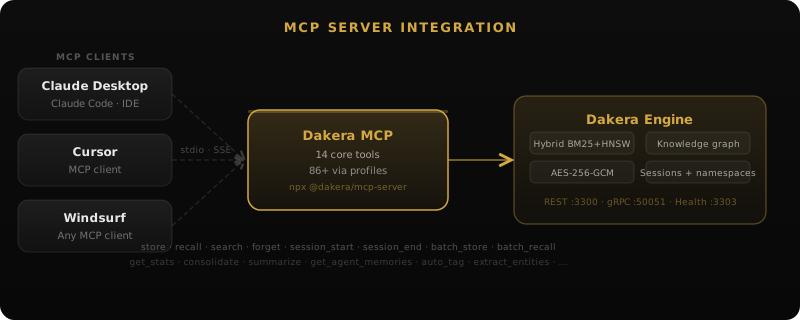
The entire setup takes under 10 minutes. You will use Docker to run the Dakera server, install a single binary for the MCP bridge, and add a few lines of JSON configuration to each tool.
Prerequisites
Before you begin, make sure you have the following installed on your system:
- Docker — any recent version (20.10+). Verify with
docker --version. - Rust toolchain — needed to install the MCP server binary via Cargo. Install from rustup.rs if you do not have it.
- One or more AI tools — Claude Desktop, Claude Code, Cursor, or Windsurf installed and working.
Note: If you prefer not to install Rust, pre-built binaries for dakera-mcp are available on the GitHub Releases page. Download the binary for your platform, place it in your PATH, and skip the Cargo step.
Step 1: Start the Dakera Server
Pull and run the Docker container
This command starts Dakera on port 3000 with filesystem-based storage. A Docker volume named dakera-data persists your memories across container restarts.
docker run -d --name dakera -p 3000:3000 -e DAKERA_PORT=3000 -e DAKERA_ROOT_API_KEY=my-dev-key -e DAKERA_STORAGE=filesystem -e DAKERA_STORAGE_PATH=/data -v dakera-data:/data ghcr.io/dakera-ai/dakera:latestOnce the container starts, verify the server is healthy:
curl http://localhost:3000/healthYou should see a JSON response indicating the server is ready:
{"status":"healthy","version":"0.11.55"}Tip: Replace my-dev-key with a strong, randomly generated key for anything beyond local development. This key authenticates all requests to your Dakera instance.
Understanding the configuration
Here is what each environment variable does:
DAKERA_PORT— the port the HTTP server listens on inside the container.DAKERA_ROOT_API_KEY— the API key required to authenticate requests. All MCP clients will use this key.DAKERA_STORAGE— the storage backend.filesystemis the simplest option for local development; Dakera also supports S3-compatible backends for production.DAKERA_STORAGE_PATH— the directory inside the container where data is written. The-vflag maps this to a persistent Docker volume.
Step 2: Install the MCP Server Binary
Install via Cargo
The dakera-mcp binary is the bridge between your AI tools and the Dakera server. It implements the MCP protocol and exposes Dakera's memory capabilities as tools that AI assistants can invoke.
cargo install dakera-mcpThis compiles and installs the binary to ~/.cargo/bin/dakera-mcp. Ensure this directory is in your PATH:
# Verify the installation
dakera-mcp --version
You should see output like dakera-mcp 0.10.3 (version may vary).
Tip: If you installed from a pre-built binary instead of Cargo, make sure the binary is executable (chmod +x dakera-mcp) and located somewhere in your PATH (e.g., /usr/local/bin/).
What the MCP server exposes
Once connected, the MCP server provides your AI assistant with tools including:
- dakera_store — save a new memory with optional metadata and tags.
- dakera_recall — retrieve relevant memories using hybrid search (vector + BM25).
- dakera_search — full-text search across all stored memories.
- dakera_forget — remove specific memories when they are no longer relevant.
- dakera_namespace_create — organize memories into separate namespaces per project.
Your AI assistant decides when to call these tools based on the conversation context. You do not need to manually trigger memory storage — the assistant handles it automatically.
Step 3: Configure Claude Desktop
Add Dakera to your Claude Desktop MCP config
Open (or create) the Claude Desktop configuration file at:
- macOS:
~/Library/Application Support/Claude/claude_desktop_config.json - Linux:
~/.config/claude/claude_desktop_config.json - Windows:
%APPDATA%\Claude\claude_desktop_config.json
Add the following to the mcpServers object:
{
  "mcpServers": {
    "dakera": {
      "command": "dakera-mcp",
      "env": {
        "DAKERA_API_URL": "http://localhost:3000",
        "DAKERA_API_KEY": "my-dev-key"
      }
    }
  }
}
If you already have other MCP servers configured, simply add the "dakera" entry alongside them inside the existing mcpServers object.
Important: After editing the config file, you must fully quit and restart Claude Desktop for the changes to take effect. The MCP connection is established at application startup.
Step 4: Configure Claude Code
Add Dakera to your project or global MCP config
Claude Code reads MCP configuration from a .mcp.json file. You can place this at the root of your project (for project-specific memory) or in your home directory (for global memory across all projects).
Project-level — create or edit .mcp.json in your project root:
{
  "mcpServers": {
    "dakera": {
      "command": "dakera-mcp",
      "env": {
        "DAKERA_API_URL": "http://localhost:3000",
        "DAKERA_API_KEY": "my-dev-key"
      }
    }
  }
}
Global — create or edit ~/.mcp.json for memory that persists across all projects:
{
  "mcpServers": {
    "dakera": {
      "command": "dakera-mcp",
      "env": {
        "DAKERA_API_URL": "http://localhost:3000",
        "DAKERA_API_KEY": "my-dev-key"
      }
    }
  }
}
Claude Code will automatically detect the MCP server the next time it starts a session in that project directory.
Namespaces for multi-project setups
Dakera supports namespaces to isolate memories per project. To use a specific namespace, pass it as a parameter when calling memory tools — for example, call dakera_store with namespace: "my-project" or have the AI assistant include it in tool calls. The MCP config itself only needs the server URL and API key:
{
  "mcpServers": {
    "dakera": {
      "command": "dakera-mcp",
      "env": {
        "DAKERA_API_URL": "http://localhost:3000",
        "DAKERA_API_KEY": "my-dev-key"
      }
    }
  }
}
You can then instruct your AI assistant to always use a project-specific namespace when storing and recalling memories, keeping each project's context separate.
Step 5: Configure Cursor
Add Dakera via Cursor MCP settings
Cursor supports MCP servers through its settings interface. Open Cursor and navigate to:
Settings → MCP Servers → Add Server
Configure the server with these values:
- Name:
dakera - Command:
dakera-mcp - Environment:
DAKERA_API_URL=http://localhost:3000,DAKERA_API_KEY=my-dev-key
Alternatively, you can edit Cursor's MCP configuration file directly. Create or edit .cursor/mcp.json in your project root:
{
  "mcpServers": {
    "dakera": {
      "command": "dakera-mcp",
      "env": {
        "DAKERA_API_URL": "http://localhost:3000",
        "DAKERA_API_KEY": "my-dev-key"
      }
    }
  }
}
Restart Cursor after adding the configuration.
Step 6: Configure Windsurf
Add Dakera via Windsurf MCP settings
Windsurf (Codeium's AI IDE) supports MCP servers through its configuration system. Open the MCP configuration file:
macOS/Linux: ~/.codeium/windsurf/mcp_config.json
Windows: %USERPROFILE%\.codeium\windsurf\mcp_config.json
Add the Dakera MCP server:
{
  "mcpServers": {
    "dakera": {
      "command": "dakera-mcp",
      "env": {
        "DAKERA_API_URL": "http://localhost:3000",
        "DAKERA_API_KEY": "my-dev-key"
      }
    }
  }
}
Save the file and restart Windsurf. The Cascade AI assistant will now have access to Dakera's memory tools. See the Windsurf integration guide for advanced configuration options and use cases.
Step 6.5: Choose Your Tool Profile (DAKERA_MCP_PROFILE)
Dakera exposes 86+ MCP tools total, but loading all of them wastes context window tokens. The DAKERA_MCP_PROFILE environment variable (or --profile CLI flag) controls which tools appear in tools/list:
| Profile | Tools | Context Cost | Best For |
|---|---|---|---|
| core (default) | 14 | ~2,964 tokens | Most users — memory, search, sessions, knowledge graphs |
| admin | 32 | ~5,975 tokens | Operators — adds namespaces, keys, policies, decay config |
| power | 68 | ~13,014 tokens | Advanced — adds entity extraction, graph traversal, agent stats |
| all | 86 | ~16,026 tokens | Full surface — vectors, bulk ops, encryption, storage tiers |
Set via environment variable in your MCP config:
{
  "mcpServers": {
    "dakera": {
      "command": "dakera-mcp",
      "env": {
        "DAKERA_API_URL": "http://localhost:3000",
        "DAKERA_API_KEY": "my-dev-key"
      },
      "env": {
        "DAKERA_MCP_PROFILE": "power"
      }
    }
  }
}
Or via CLI flag: dakera-mcp --profile power
Tip: Start with core. Every profile includes dakera_discover_tools and dakera_load_tools — meta-tools that let your agent browse and load additional tool schemas on demand without switching profiles.
Step 7: Verify the Connection
After configuring your preferred tool and restarting it, verify that the MCP connection is active.
In Claude Desktop
Open a new conversation. You should see a tools icon (hammer) in the input area indicating MCP tools are available. Click it to confirm dakera_store, dakera_recall, and other Dakera tools appear in the list.
Test it by typing:
Remember that my preferred programming language is Rust and I deploy to Hetzner Cloud.Claude should invoke dakera_store to save this preference. In a new conversation, ask:
What is my preferred programming language?Claude should invoke dakera_recall and respond with "Rust" based on the stored memory.
In Claude Code
Start a new Claude Code session in a project with the .mcp.json configured. You should see Dakera tools listed when the session initializes. Look for output like:
MCP server "dakera" connected (12 tools available)In Cursor and Windsurf
Open the AI chat panel and check that MCP tools are listed. The exact UI varies by version, but you should see Dakera-related tools in the tool list or settings panel.
Verify from the command line
You can also confirm the server has stored memories by querying the Dakera API directly:
curl -H "Authorization: Bearer my-dev-key" http://localhost:3000/v1/memory/recall -d '{"agent_id":"test","query":"recent","top_k":5}'This returns the most recent memories stored by your AI tools.
Troubleshooting
MCP tools do not appear after restart
- Check the binary is in PATH: Run
which dakera-mcpin your terminal. If it returns nothing, the binary is not in your PATH. Add~/.cargo/binto your shell profile. - Check the config file path: Each tool looks for its MCP config in a specific location. Double-check you are editing the correct file for your OS and tool.
- Check JSON syntax: A missing comma or bracket in the config file will silently fail. Validate your JSON with
jq . < config-file.json.
Connection refused errors
- Verify Docker is running: Run
docker psand confirm thedakeracontainer is listed and healthy. - Check port mapping: Run
curl http://localhost:3000/health. If this fails, the container may not have started correctly. Check logs withdocker logs dakera. - Firewall rules: On Linux, ensure your firewall allows localhost connections on port 3000.
Authentication errors (401 Unauthorized)
- API key mismatch: Ensure the
DAKERA_API_KEYvalue in your MCP config matches theDAKERA_ROOT_API_KEYenvironment variable you passed to the Docker container exactly. - Trailing whitespace: Some editors add invisible characters. Copy the key value directly from your terminal command to avoid discrepancies.
Memories not being recalled
- Namespace mismatch: If you used a specific namespace when storing memories in one tool but a different namespace (or none) when recalling in another, memories will not appear. Use consistent namespace parameters across all tool calls, or omit the namespace to use the default.
- Empty database: If you just set up the server, it has no memories yet. Store a few facts first, then test recall.
- Container restart: If you ran
docker runwithout the-v dakera-data:/dataflag, your memories are lost when the container stops. Re-run with the volume flag to persist data.
Slow startup or compilation
The cargo install dakera-mcp command compiles from source, which can take 2-5 minutes depending on your machine. This is a one-time cost. Subsequent updates are faster due to incremental compilation. If you need a faster path, download the pre-built binary from the releases page.
MCP tool calls fail silently
If the AI assistant appears to not be using memory (not calling dakera_store or dakera_recall even when you expect it to), check these causes:
- Profile too restrictive: The default
coreprofile exposes 14 tools. If your assistant is selecting tools at startup and Dakera's tools are not listed, test the server connection withdakera-mcp --test-connectionto confirm it starts and authenticates successfully. - System prompt overrides: Some AI tool configurations include system prompts that explicitly disable third-party tool use. Check your tool's settings for any such restrictions.
- MCP version mismatch: Ensure your
dakera-mcpbinary version is compatible with the MCP protocol version your AI tool expects. Upgrade withcargo install dakera-mcp --forceto get the latest.
High memory usage on the Dakera container
If the Docker container is consuming more RAM than expected, the primary cause is a large HNSW index. The HNSW index is kept in memory for fast nearest-neighbor search. Use Docker stats to check current consumption:
docker stats dakera --no-stream
# CONTAINER ID   NAME      CPU %   MEM USAGE / LIMIT
# abc123         dakera    0.3%    312MiB / 7.77GiB

# If memory is excessive, check namespace sizes via the API
curl -H "Authorization: Bearer my-dev-key"   http://localhost:3000/v1/namespaces | jq '.[] | {name, memory_count}'
To reduce memory, configure decay settings to prune old memories and set per-namespace maximums. See the memory decay documentation for configuration details.
Connecting Multiple MCP Clients Simultaneously
One of the most powerful aspects of this setup is that all your AI tools share the same Dakera backend. A memory stored by Claude Desktop is immediately available to Claude Code, Cursor, or Windsurf — no synchronization required, because they all read from and write to the same server.
How Multiple Clients Work Together
Each MCP client (Claude Desktop, Claude Code, Cursor, Windsurf) runs its own dakera-mcp process that connects to the single Dakera server via HTTP. Multiple client processes can connect simultaneously without conflict — Dakera handles concurrent connections safely:
To enable this, all clients must use the same API key and connect to the same Dakera server. Since all tools share the default namespace by default, memories stored by Claude Code are immediately visible to Cursor and Windsurf without any extra configuration.
Shared Memory Configuration
For a fully unified memory layer across all tools, use identical configuration in each tool's MCP config file:
{
  "mcpServers": {
    "dakera": {
      "command": "dakera-mcp",
      "env": {
        "DAKERA_API_URL": "http://localhost:3000",
        "DAKERA_API_KEY": "my-dev-key"
      }
    }
  }
}
Project-Scoped Shared Memory
For a more organized setup, you can instruct your AI assistants to store and recall memories in a specific namespace for each project. Both Claude Code and Cursor will then keep memories for that project separate from your other work. Use identical config for all tools, and tell the assistant which namespace to use:
# .mcp.json in your project root (Claude Code reads this automatically)
{
  "mcpServers": {
    "dakera": {
      "command": "dakera-mcp",
      "env": {
        "DAKERA_API_URL": "http://localhost:3000",
        "DAKERA_API_KEY": "my-dev-key"
      }
    }
  }
}
Now Claude Code and Cursor share the same memory store. Context you store in one tool is immediately available to the other — architecture decisions, naming conventions, past debugging notes, and more.
Team-Wide Shared Memory
For teams where multiple developers should share a common memory base, deploy Dakera to a shared server (instead of localhost) and point all developers' MCP clients at the same URL. Each developer still runs their own dakera-mcp process locally, but they all connect to the shared Dakera server:
# Shared server deployment (team setup)
# Dakera runs on: https://memory.internal.yourcompany.com

# Each developer's MCP config
{
  "mcpServers": {
    "dakera-team": {
      "command": "dakera-mcp",
      "env": {
        "DAKERA_API_URL": "https://memory.internal.yourcompany.com",
        "DAKERA_API_KEY": "team-shared-key"
      }
    }
  }
}
For the self-hosted setup required for a team deployment — including TLS, authentication, and monitoring — see the complete self-hosting guide.
Verifying Cross-Tool Memory Sharing
To confirm two tools are sharing memory, store a fact from one tool and retrieve it from another:
# Step 1: In Claude Desktop, say:
# "Remember that our database uses PostgreSQL 16 on RDS in us-east-1"
# (Claude will call dakera_store)

# Step 2: Verify the memory exists via the API
curl -H "Authorization: Bearer my-dev-key"   -X POST http://localhost:3000/v1/memory/recall   -H "Content-Type: application/json"   -d '{"agent_id": "cursor-dev", "query": "database PostgreSQL", "top_k": 3}' | jq '.memories[].content'

# Step 3: In Cursor, ask:
# "What database are we using?"
# Cursor's dakera-mcp will call dakera_recall and return the stored fact
Advanced Configuration
Custom Embedding Models
By default, Dakera uses the BGE-small-en-v1.5 embedding model running locally via ONNX. You can switch to a different model for different accuracy/speed trade-offs. Configure the model in your Dakera server's configuration or via environment variable:
# Available on-device ONNX models:
# bge-small-en-v1.5  — 33M params, fastest, 384-dim embeddings (default)
# bge-base-en-v1.5   — 109M params, balanced, 768-dim embeddings
# minilm-l6-v2       — 22M params, fastest, 384-dim embeddings
# e5-small-v2        — 33M params, E5 family, 384-dim embeddings

# In your docker run command, set via environment:
docker run -d --name dakera -p 3000:3000   -e DAKERA_MODEL=bge-base-en-v1.5   -e DAKERA_ROOT_API_KEY=my-dev-key   -v dakera-data:/data   ghcr.io/dakera-ai/dakera:latest
Switching models invalidates existing embeddings — existing memories will be re-embedded on next access. For large memory stores, trigger a full re-indexing pass after switching:
# Trigger re-embedding of all memories (runs asynchronously)
curl -X POST http://localhost:3000/v1/admin/reindex   -H "Authorization: Bearer my-dev-key"   -H "Content-Type: application/json"   -d '{"namespace": "all"}'

# Monitor progress
curl http://localhost:3000/v1/admin/reindex/status   -H "Authorization: Bearer my-dev-key"
Rate Limiting
For shared deployments where multiple developers or tools write to the same Dakera instance, configure rate limits to prevent any single client from overwhelming the server. Rate limits are set per API key:
# Create a rate-limited API key for a specific tool
curl -X POST http://localhost:3000/v1/keys   -H "Authorization: Bearer admin-key"   -H "Content-Type: application/json"   -d '{
    "name": "claude-desktop-key",
    "rate_limit": {
      "stores_per_minute": 60,
      "searches_per_minute": 120
    }
  }'
Rate limiting is particularly useful when your AI tools are configured to be aggressive about storing memories — some assistant configurations store context very frequently. Without rate limits, a busy coding session could generate hundreds of store operations per hour.
Configuring Memory Decay for MCP Use
MCP-based usage naturally accumulates memories quickly — every conversation can add dozens of new facts. Configure decay so that working memory from last month doesn't crowd out fresh context from this week:
# Set decay strategy for a namespace via the REST API
curl -X PUT http://localhost:3000/v1/namespaces/my-project/policy   -H "Authorization: Bearer my-dev-key"   -H "Content-Type: application/json"   -d '{
    "decay_strategy": "logarithmic",
    "decay_half_life_days": 30,
    "max_memories": 50000
  }'
This configuration means memories from 30 days ago have half the retrieval weight of fresh memories. After 90 days, they have about 1/8 the weight. High-importance memories (those stored with importance > 0.8) resist decay more aggressively.
Connecting to a Remote Dakera Instance
If you run Dakera on a remote server (for team sharing, or to use a more powerful machine for embedding computation), update the DAKERA_API_URL environment variable to point to the remote address. Ensure TLS is configured on the remote server before exposing it beyond localhost — see the self-hosting guide for the Caddy reverse proxy setup:
{
  "mcpServers": {
    "dakera": {
      "command": "dakera-mcp",
      "env": {
        "DAKERA_API_URL": "https://memory.yourdomain.com",
        "DAKERA_API_KEY": "your-production-key"
      }
    }
  }
}
What to Do Next
With Dakera connected to your AI tools, here are productive next steps:
Organize with namespaces
Create separate namespaces for different projects or contexts. This keeps memories focused and improves recall precision:
{
  "mcpServers": {
    "dakera": {
      "command": "dakera-mcp",
      "env": {
        "DAKERA_API_URL": "http://localhost:3000",
        "DAKERA_API_KEY": "my-dev-key"
      }
    }
  }
}
Instruct the assistant to use a project-specific namespace when storing and recalling memories. Dakera's namespace parameter at the tool level keeps each project's context isolated.
Store project context early
At the start of a new project, tell your AI assistant about the architecture, conventions, and decisions. These become retrievable context for all future sessions:
- Tech stack and framework choices
- Naming conventions and code style preferences
- Deployment targets and infrastructure details
- Key business logic and domain terminology
- Past decisions and their rationale
Explore the API
Dakera exposes a full REST API beyond what the MCP tools surface. You can build custom integrations, batch-import existing knowledge, or query memories programmatically:
# Store a memory via the API
curl -X POST http://localhost:3000/v1/memory/store   -H "Authorization: Bearer my-dev-key"   -H "Content-Type: application/json"   -d '{"content": "Our API uses camelCase for JSON fields", "metadata": {"category": "conventions"}}'

# Search memories
curl -X POST http://localhost:3000/v1/memory/recall   -H "Authorization: Bearer my-dev-key"   -H "Content-Type: application/json"   -d '{"agent_id": "cursor-dev", "query": "JSON naming conventions", "top_k": 5}'
Set up for production
For team or production use, consider these upgrades:
- Generate a strong API key: Use
openssl rand -hex 32instead ofmy-dev-key. - Enable encryption at rest: Set
DAKERA_ENCRYPTION_KEYto encrypt all stored memories on disk. - Switch to S3 storage: For durability and backup, configure
DAKERA_STORAGE=s3with your bucket credentials. - Run behind a reverse proxy: Add TLS termination with Caddy or Nginx if exposing beyond localhost.
- Monitor with the dashboard: Dakera exposes Prometheus metrics at
/metricsfor observability.
Use multiple tools with shared memory
One of the most powerful aspects of this setup is that all your AI tools share the same memory backend. A decision you record in Claude Desktop is instantly available to Cursor. Context you store during a Claude Code session carries over to Windsurf. This creates a unified knowledge layer across your entire development workflow.
For example, if you document your API authentication flow in one tool, every other tool will recall that context when you ask about authentication — no repetition needed.
Read the docs
The full Dakera documentation covers advanced topics including hybrid search tuning, knowledge graphs, temporal memory, multi-agent architectures, and the SDK libraries for Python, JavaScript, Rust, and Go. Visit Dakera documentation or read the MCP server reference to dive deeper.
Tip: Open an issue on GitHub to share your setup, ask questions, and see how others are using Dakera with their AI workflows.
Your memory server is one command away
Pull the binary, set one env var, add one block to your MCP config — persistent memory across Claude Desktop, Cursor, Windsurf, and Claude Code.